02. Setting up SteamVR on Your Computer
Setting up SteamVR on Your Computer
To get started, you’ll need to install Steam, an online game distribution platform, and SteamVR, an application that allows you to run VR apps. If you’ve already done so, you can skip to the next section.
Install Steam
Visit the Steam homepage and install Steam. Follow the instructions provided when you click the install button and you should be good to go. You’ll need to create a Steam account by providing an email address.
Install SteamVR
Once Steam is installed and you’ve signed into your account, you might see a VR button in the top right. If you don’t, click Library -> Tools and scroll down until you see SteamVR. Right click on it and press Install.
Once SteamVR is installed, you should be able to launch it, popping up a small box with a picture of your headset, two controllers, and two base stations.
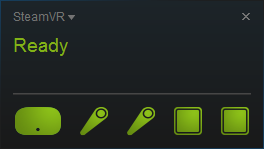
Make sure your headset, controllers, and sensors are correctly plugged in. Once the icons are all green, run room setup and follow the instructions.
If at any time you run into difficulties, try restarting SteamVR, restarting Steam, and restarting your computer. Also double check that every component is plugged in and that the headset and controllers are in view of the sensors.
Once the room is set up and everything is installed, you’re ready to start using SteamVR!